Table Preview
A Table Preview shows the rows of one table without writing a query. Right-click a table in the TOM Explorer view and choose Preview data, or select the table and press Ctrl+R. Previews open as documents, so you can open several at once and dock, float or move them to another monitor.
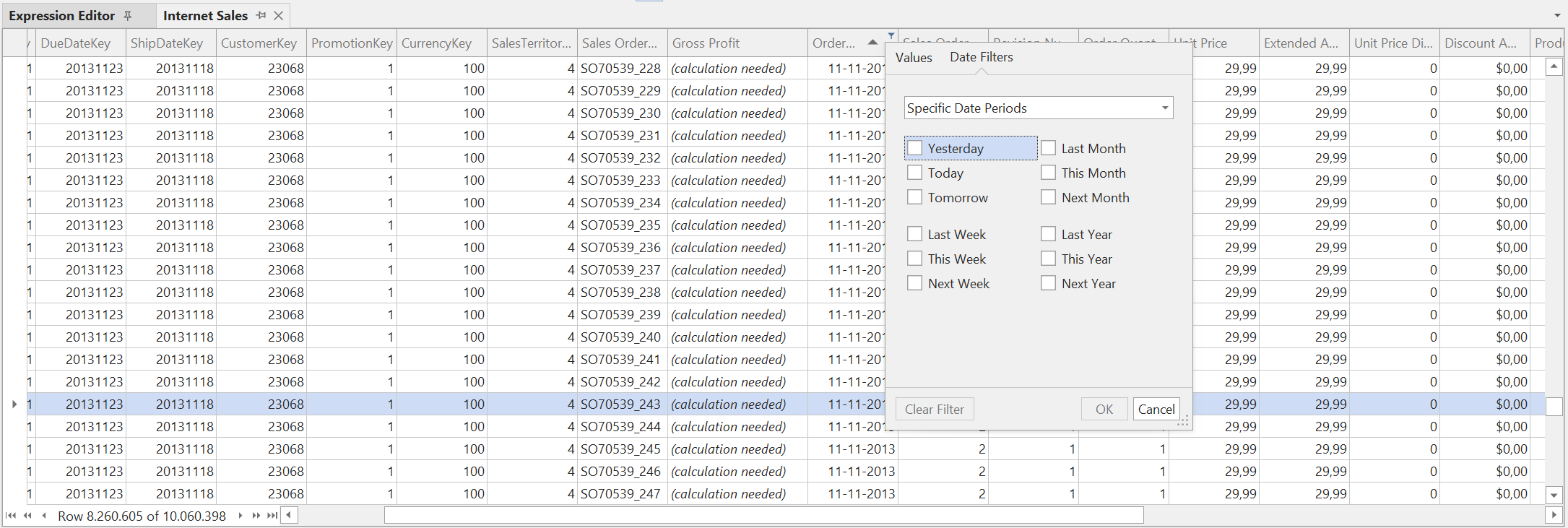
Reading the grid
Tabular Editor runs a DAX query that returns the rows the view can show, and loads more rows as you scroll. The scroll range depends on the storage mode and the engine:
- An Import table with a primary key, on an engine that supports
WINDOW, scrolls through the full table. Paging usesWINDOWagainst the primary key. - An Import table without a primary key, or on an engine without
WINDOWsupport, shows the first rows only, and the preview shows that scrolling is disabled. - A DirectQuery table shows the first rows only, up to the Row limit preference, with a message that paginated browsing isn't available for DirectQuery tables. Filter the grid or write a DAX query to see specific rows.
Preview metadata is cached for the session, and reopening a preview doesn't query the server again. If the model was processed outside Tabular Editor, select Refresh Preview.
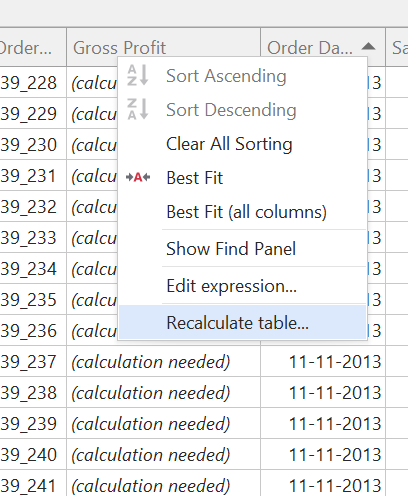
If a calculated column is in an invalid state, its cells read "(calculation needed)". Select Calculate Table on the toolbar, or Recalculate table... on the column header's right-click menu to update it.
Column order
By default, columns appear in the order the engine returns them. Sort table preview columns alphabetically in Controlling preferences sorts them by name, as the TOM Explorer does.
Finding a column in a wide table
By default, selecting a column in the TOM Explorer view scrolls the preview to that column and highlights it. Clear Track selected column on the toolbar to turn this off for one preview, or Track selected column in TOM Explorer in Controlling preferences for all previews.
Toolbar
The Table Preview toolbar and the Table Preview menu have the same commands:
| Command | What it does |
|---|---|
| Impersonation... | Sets the identity the preview query runs as, to show the data a particular user sees. |
| Refresh Preview | Re-reads the table and discards cached metadata. |
| Auto-refresh | Refreshes this preview automatically when the deployed model changes. The default for new previews is set in Controlling preferences. |
| Track selected column | Follows the column selection in the TOM Explorer. See Finding a column in a wide table. |
| Calculate Table | Recalculates the table's calculated columns. |
Right-click menu
In addition to the standard grid commands (sorting, filtering, best fit, column chooser), the preview grid has these commands:
| Command | Where it appears | What it does |
|---|---|---|
| Lock column widths | Column header | Stops the grid from resizing columns as you scroll and load more rows. |
| Edit expression... | Header of a calculated column | Opens the column's DAX expression in the Expression Editor. |
| Recalculate table... | Header of a calculated column that isn't up to date | Recalculates the table. |
| Show actual DAX query... | Anywhere in the grid | Opens a new, editable DAX query document with the query behind the preview. |
Show actual DAX query
Show actual DAX query... formats the query the preview runs, including the filter and sort applied in the grid, and opens it as a new DAX Query document without running it. The query has no paging logic and returns all filtered rows.
Note
The DAX Query view has a command with the same name on its results grid, which shows the last executed query in a read-only window.
Filtering
Each column header has a filter dropdown that lists the column's distinct values, up to the cap set by Max. values in filter dropdown in Controlling preferences (5,000 by default). Values beyond the cap aren't listed, and raising the cap makes the dropdown query slower.
Preferences
The settings on this page are under Tools > Preferences > Data Browsing > Table Preview. See Controlling preferences for the full list.