The Table Import Wizard in Tabular Editor 3 creates a data source in your model and imports tables and views from relational sources such as a SQL Server database.
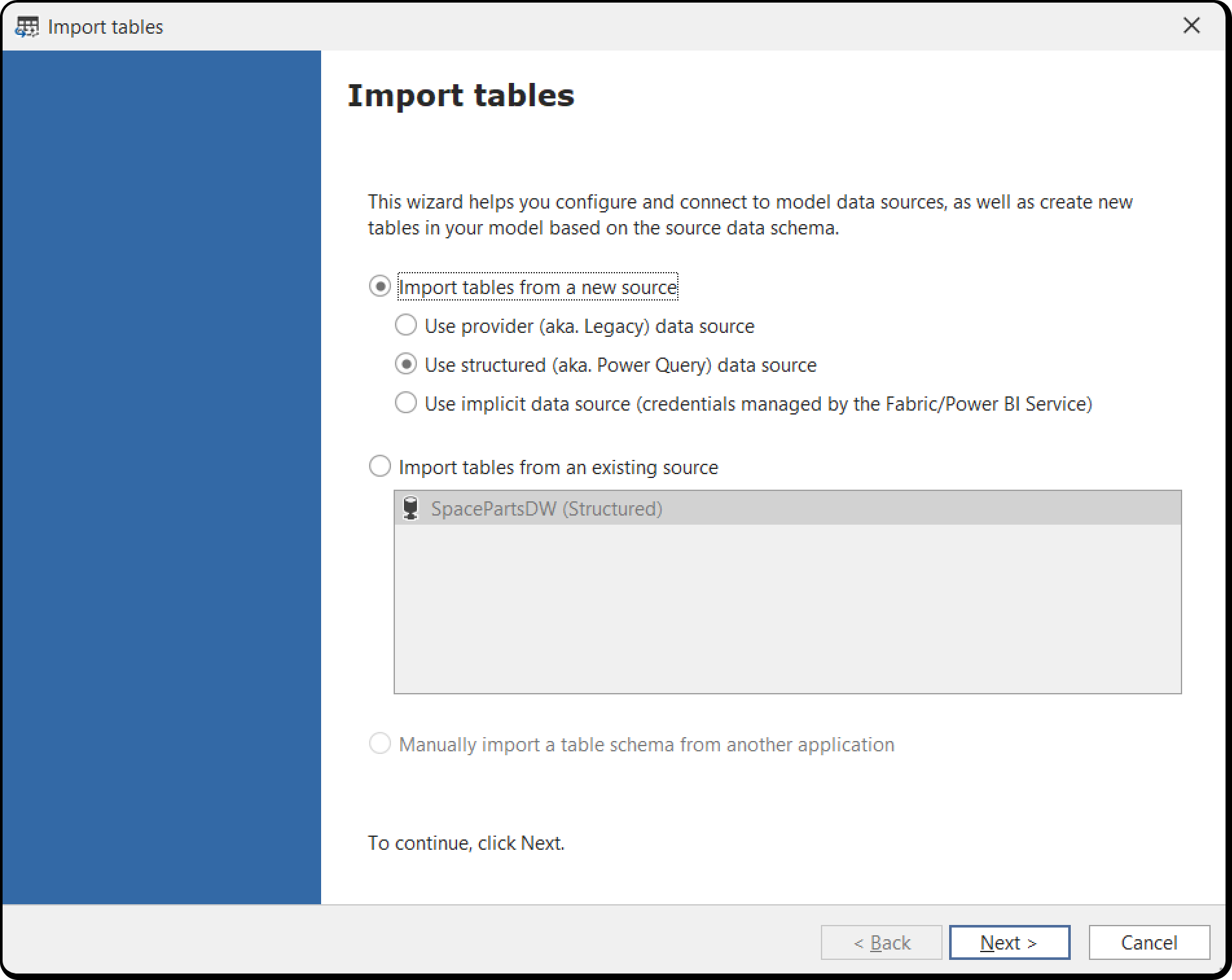
Types of TOM Data Sources
The data source types available in the model metadata depend on your version of Analysis Services:
- Provider (legacy): available in every version of Analysis Services and at every compatibility level. Supports a limited range of sources, mostly relational sources through OLE DB and ODBC drivers. Partitions are usually SQL statements that run natively against the source. Credentials are managed in the provider data source object in the Tabular Object Model and are stored and encrypted server-side.
- Structured (Power Query): available from SQL Server 2017 (compatibility level 1400 and above). Supports more sources than provider data sources. Partitions are usually M (Power Query) expressions. Credentials are managed in the structured data source object in the Tabular Object Model, and you specify them again on every deployment to Analysis Services.
- Implicit: used only by Power BI semantic models. The model has no data source object, and the M (Power Query) expression defines the data source. Power BI Desktop or the Power BI service manages the credentials, and the Tabular Object Model doesn't store them.
Note
The Table Import Wizard and Update Table Schema in Tabular Editor 2.x support only legacy data sources with SQL partitions, not Power Query partitions. If developers on the model also use Tabular Editor 2.x, use legacy data sources.
Importing new tables
Model > Import tables... lists the data source types above for a new data source, followed by the data sources already in the model. If the tables you want to import are available through an existing data source, select that data source.
Tip
A semantic model is typically an in-memory cache of a relational data warehouse. Where possible, give the model a single data source that points to the SQL-based data warehouse or data mart.
Creating a new data source
When you create a new data source, the wizard lists the sources Tabular Editor 3 supports:
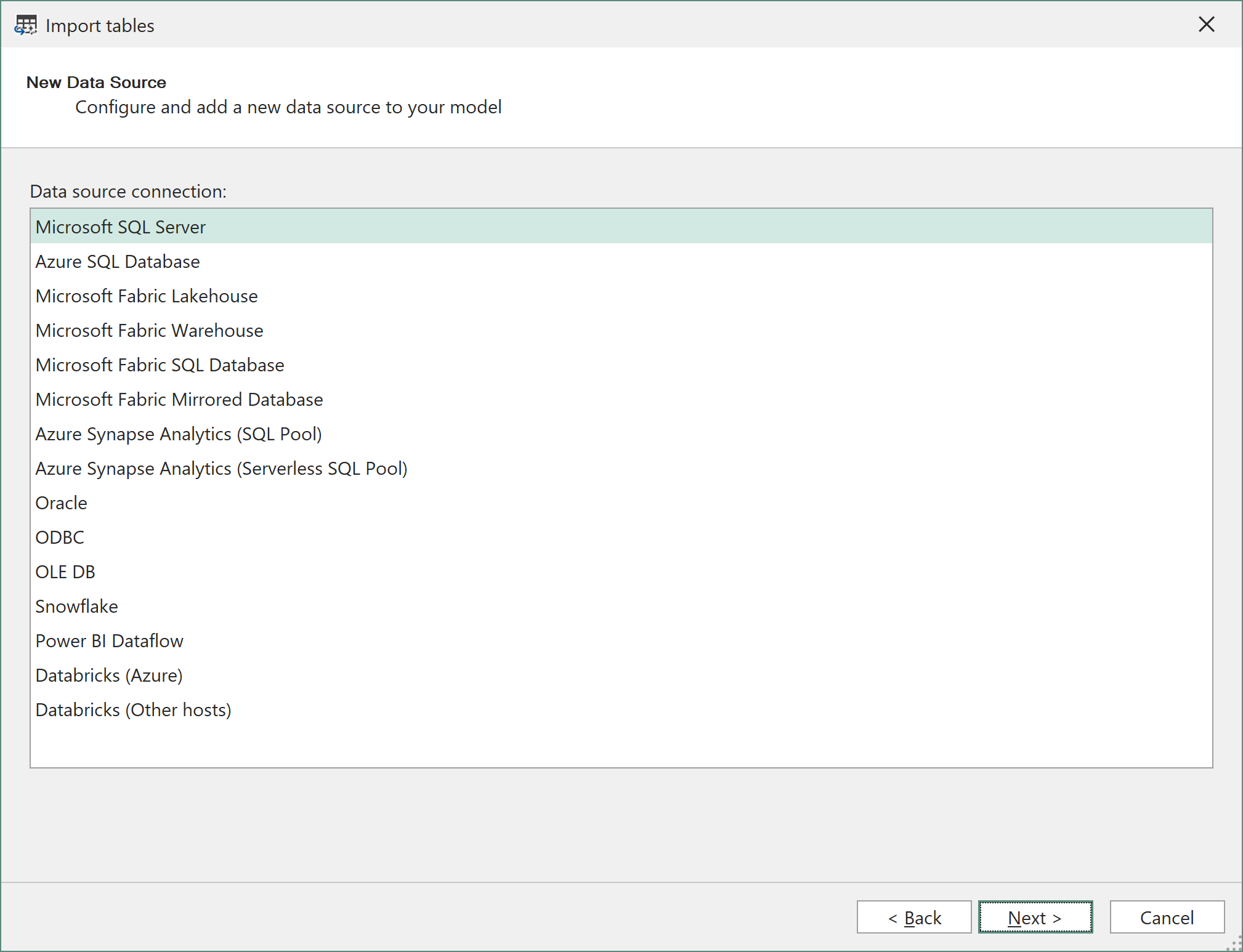
Analysis Services and Power BI support more sources than this list. The list contains the sources Tabular Editor connects to directly to import table metadata (column names and data types). For other sources, Tabular Editor 3 can update table schema through Analysis Services.
Each source has its own connection dialog and authentication options, documented on its page, including which options open an interactive sign-in. Sources marked implicit only are available only as implicit data sources in Power BI models, not in SSAS or Azure AS. See Connectivity for how credentials are stored and used.
- SQL Server databases, Azure SQL databases and Azure Synapse Analytics (SQL pool and serverless SQL pool): Connect to SQL Server
- Oracle: Connect to Oracle
- ODBC, including PostgreSQL, MySQL, MariaDB and IBM Db2: Connect through ODBC
- OLE DB: Connect through OLE DB
- Snowflake, implicit only, including key pair authentication: Connect to Snowflake
- Power BI Dataflow, implicit only: Connect to Power BI dataflows
- Databricks, implicit only: Connect to Databricks and the tutorial Connecting to Azure Databricks
- Microsoft Fabric Lakehouse, Microsoft Fabric Warehouse, Microsoft Fabric SQL Database and Microsoft Fabric Mirrored Database: Connect to Fabric and OneLake
The connection dialog takes the server address, credentials and other settings for the source. Tabular Editor uses these settings for its own connection to the source and saves them per user and per model in your User options (.tmuo) file file. Credentials are encrypted with the Windows Data Protection API under your Windows user account and never become part of the model metadata.
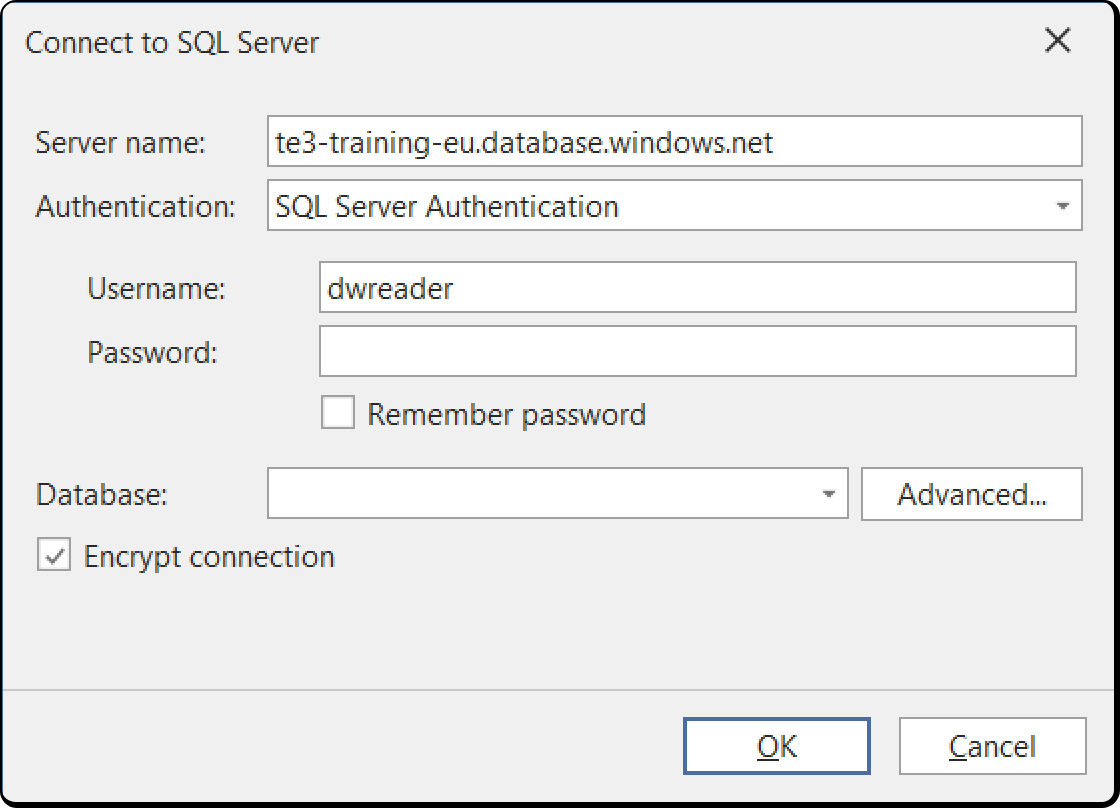
To give Analysis Services different credentials, edit the data source properties in the Tabular Object Model after you import the tables.
Choosing objects to import
After you define the data source, choose tables and views from a list or write a native query to run against the source.
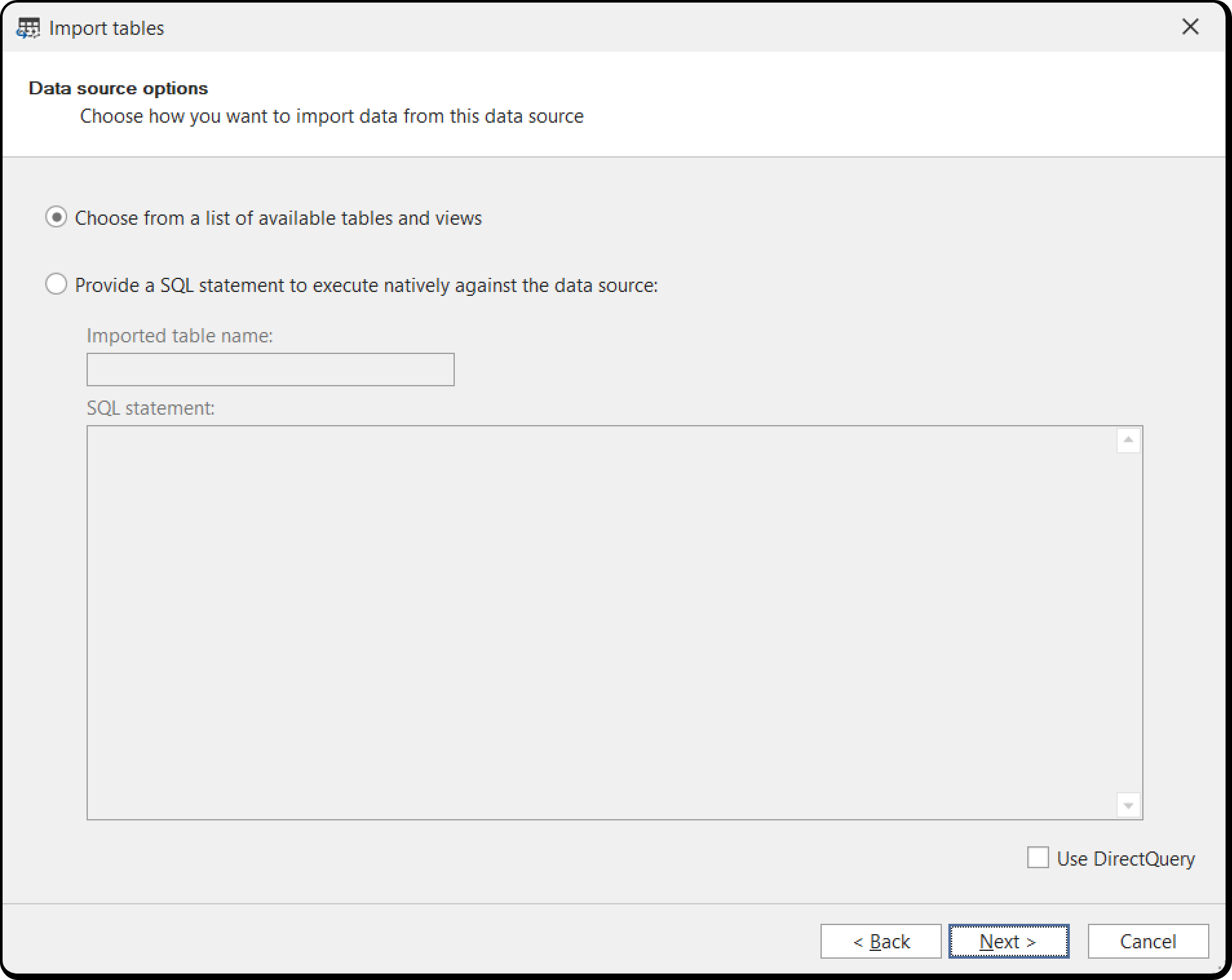
With the first option, Tabular Editor connects to the source and lists its tables and views, which you preview on the next page:
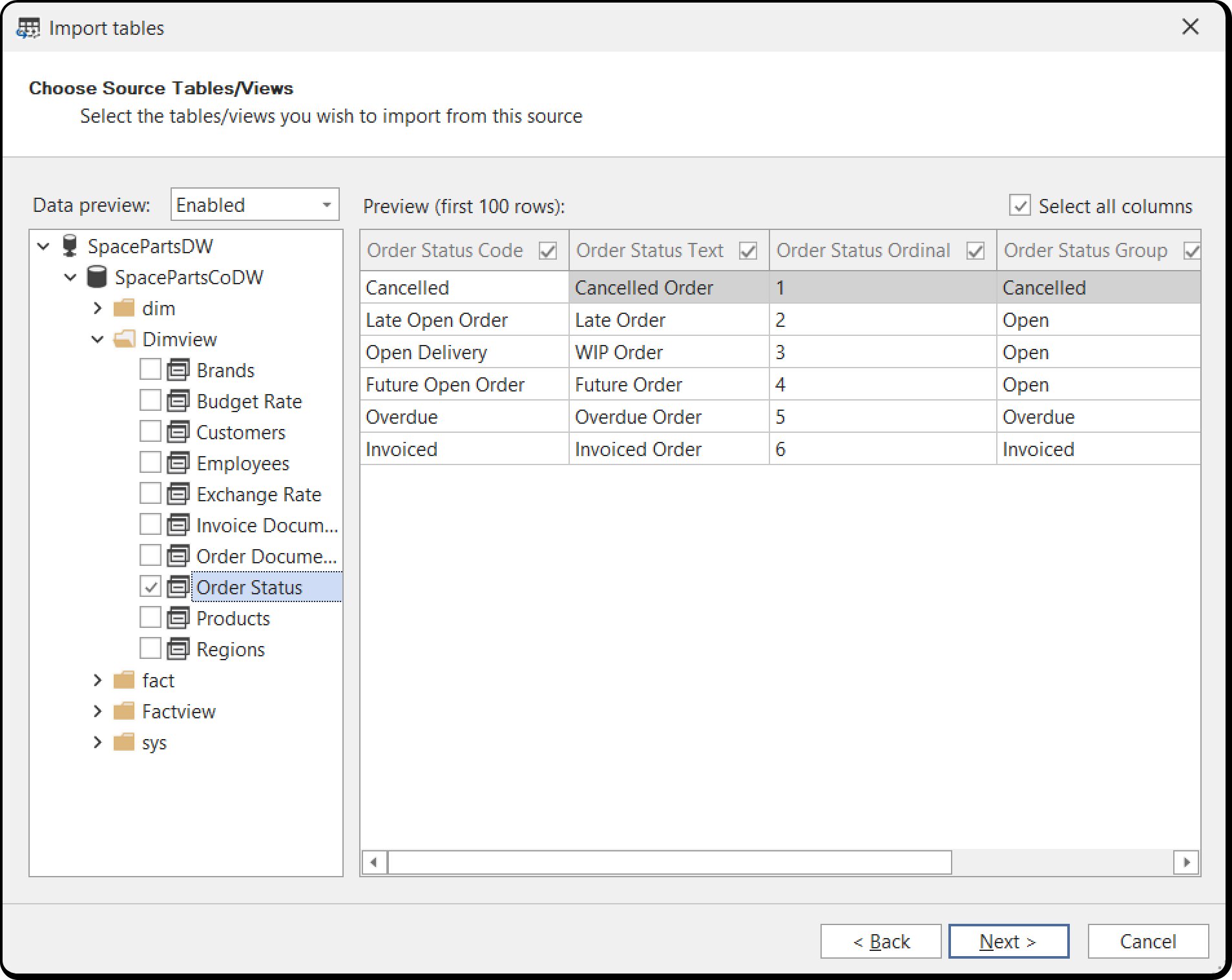
Select several tables and views on the left to import them at once. For each one, select or clear the columns to import.
Tip
If you control the source, create a view on top of each table you import. In the view, correct the names and spellings the semantic model uses and remove the columns it doesn't need, such as system columns and timestamps.
In the model, import all columns from the view, which generates a SELECT * FROM ... statement. When the source changes, Update table schema... in Tabular Editor shows what changed.
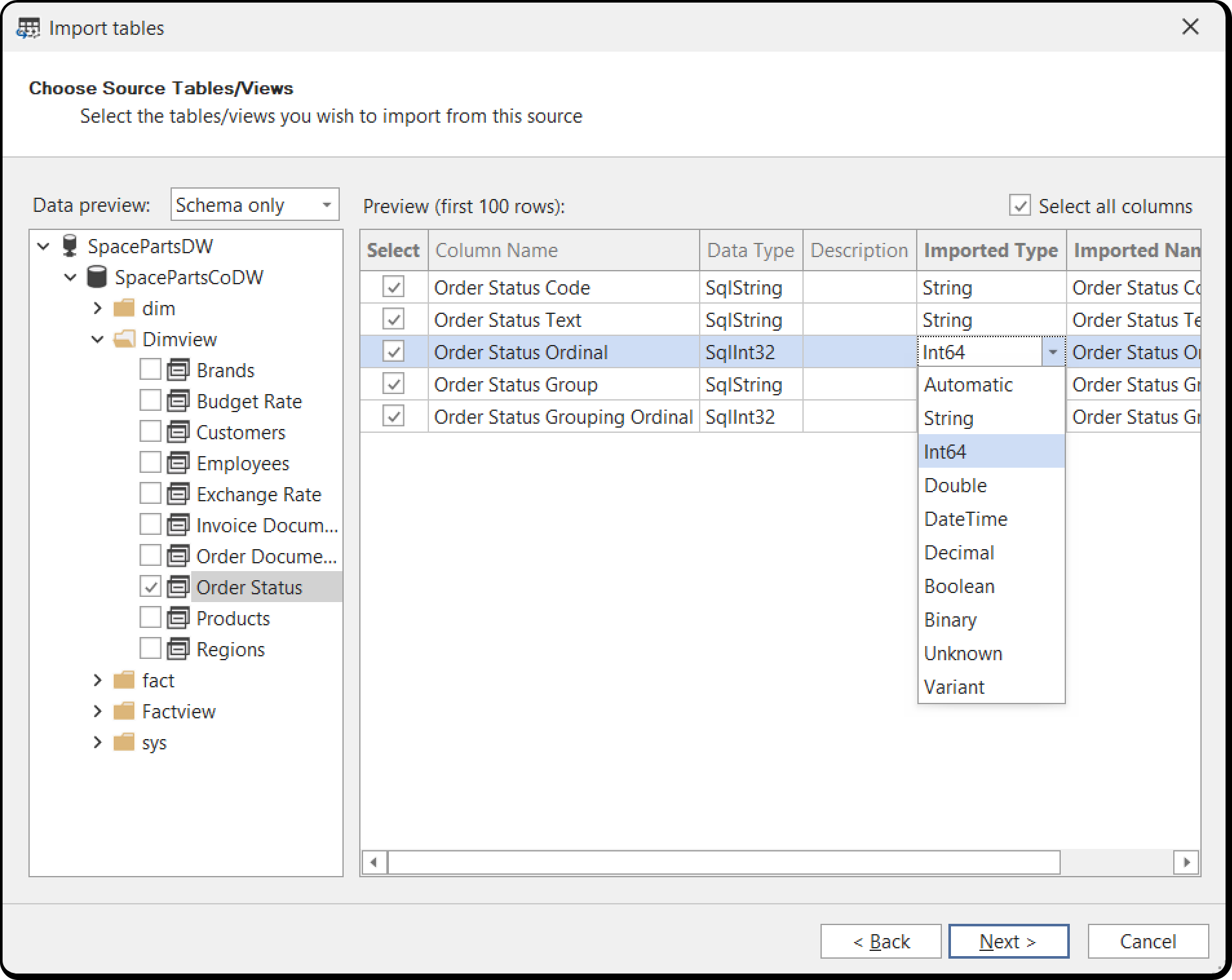
When you set the preview mode to Schema only in the drop-down in the top-left corner, you can change the imported data type and column name of each source column. For example, import floating-point source values as fixed decimal.
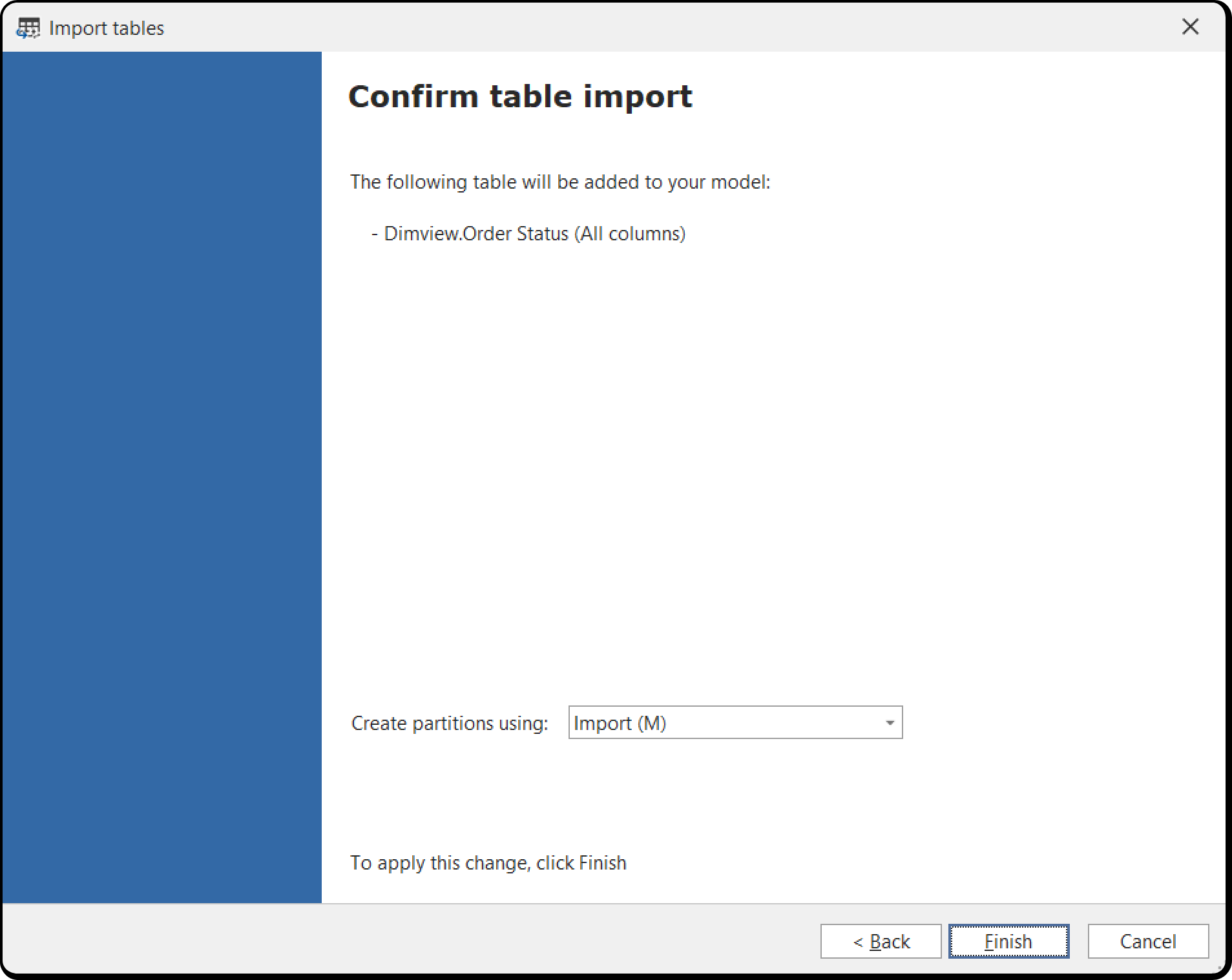
On the last page, confirm your selection and choose the type of partition to create. The default is SQL for provider data sources and M for structured data sources.
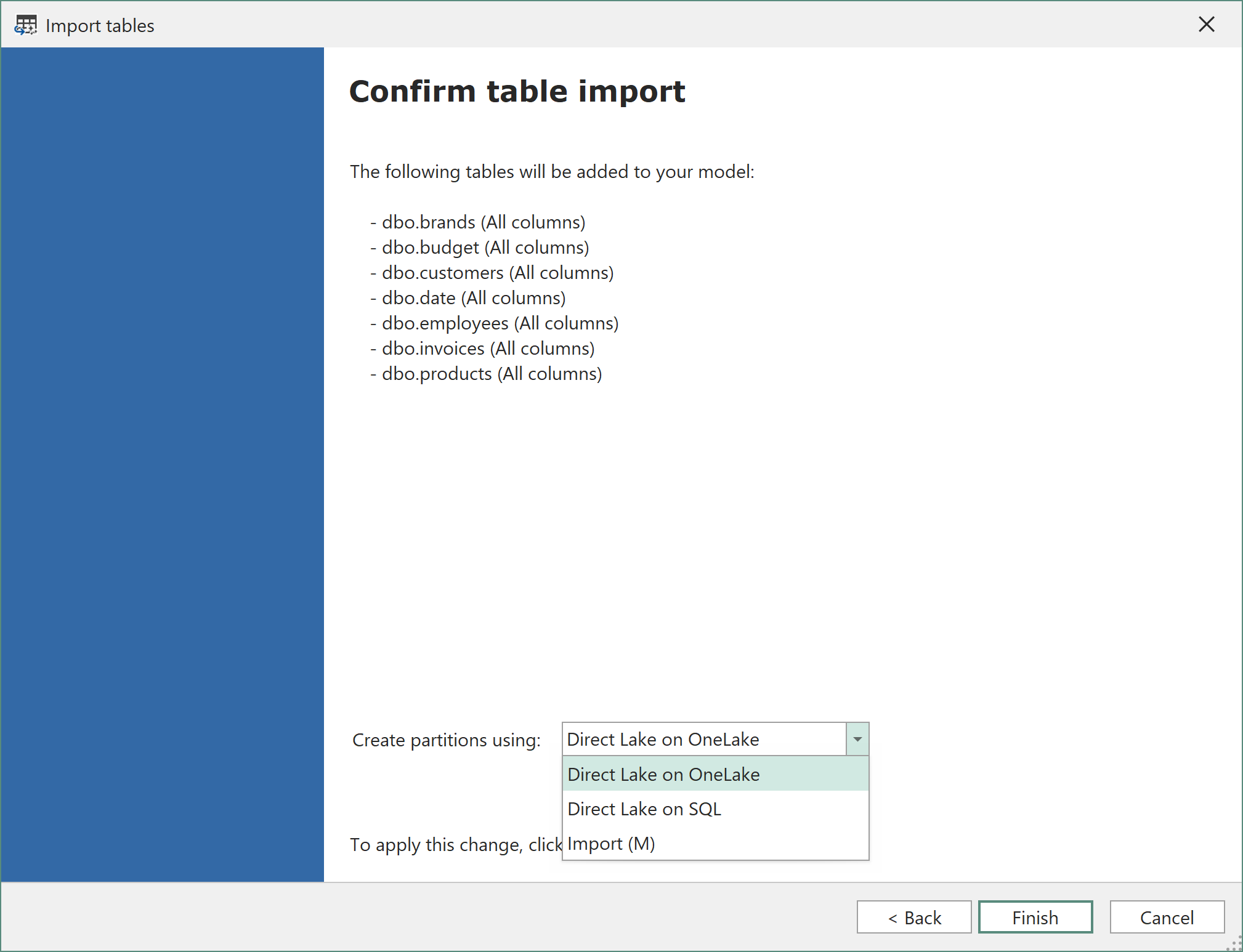
For Fabric data sources, a drop-down on the last page sets whether the selection is created in Direct Lake or Import mode.
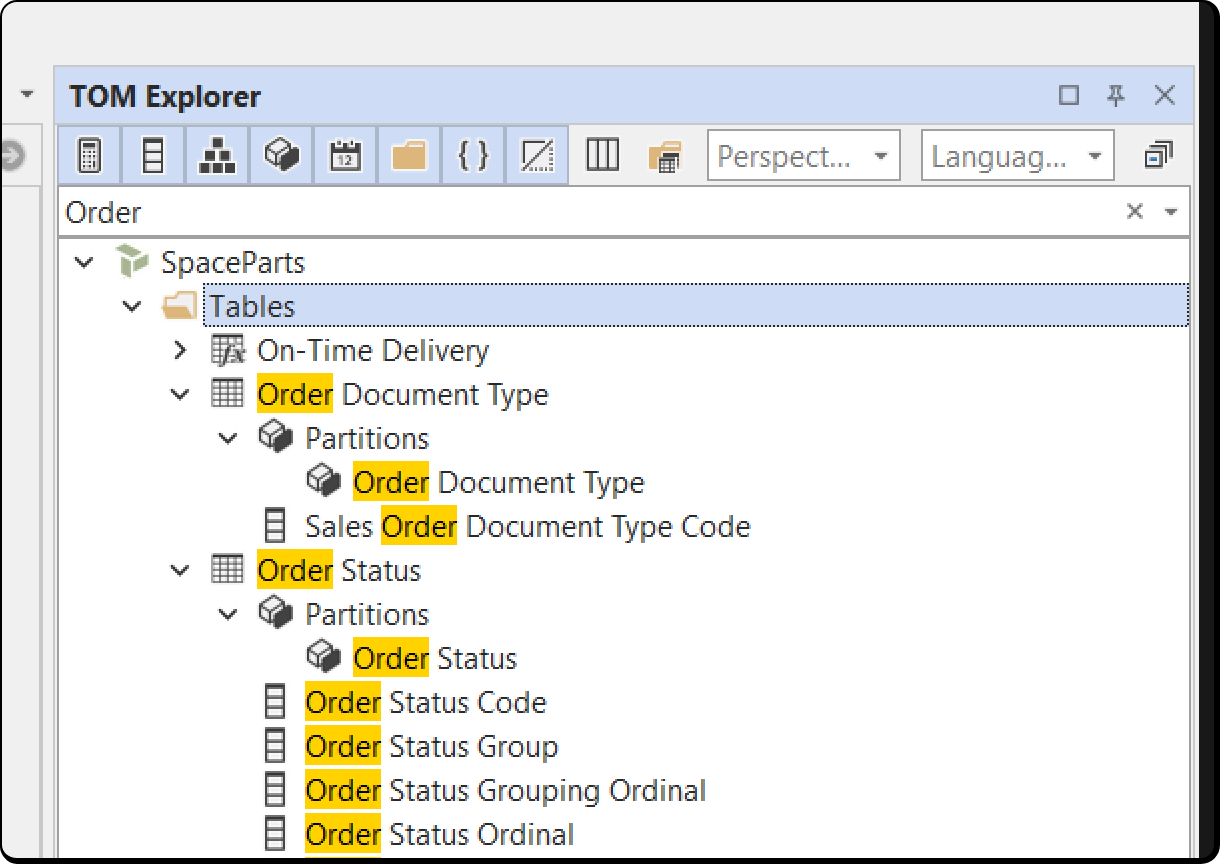
The wizard creates the tables with all columns, data types and source column mappings. Columns are created in the order they appear in the source table:
Note
Import tables from a Microsoft Fabric Lakehouse or Microsoft Fabric Warehouse read their schema through the SQL analytics endpoint of the data source. If Tabular Editor can't determine the endpoint and the import settings don't specify one, an error names what's missing: the SQL endpoint as the server, or a workspace ID and item ID. Tabular Editor doesn't create a table without columns in that case.
Updating table schema
Update table schema... updates the column metadata in your model after columns are added or changed in the source, or after you modify a partition expression or query.
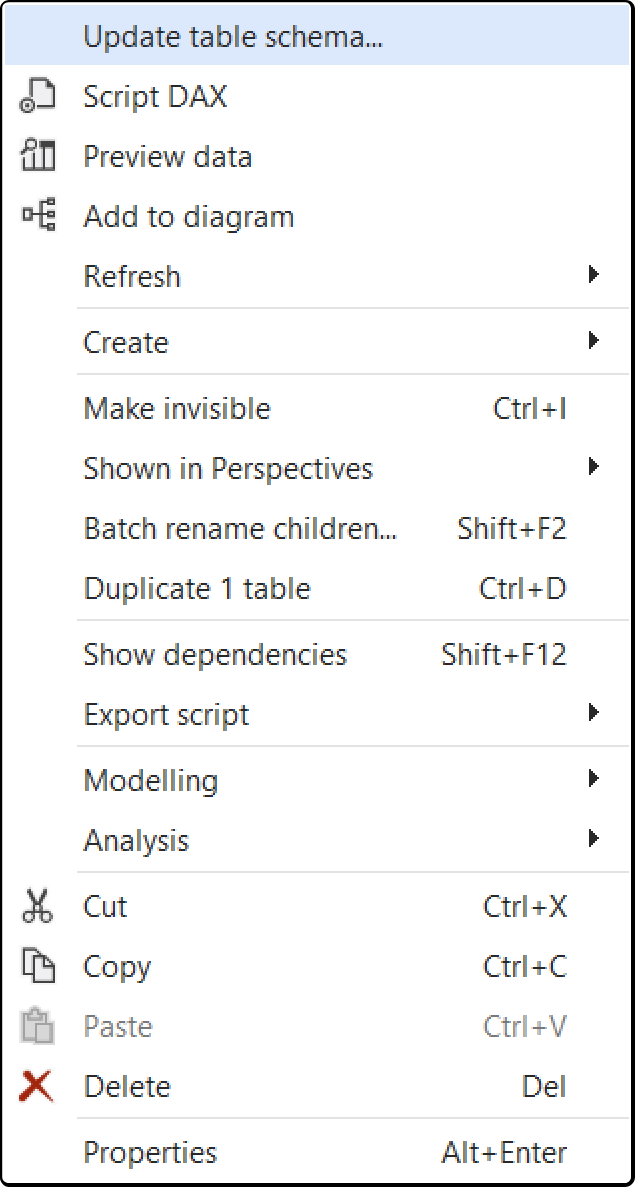
Run it on the model, on a selection of tables or on individual partitions.
Tabular Editor connects to the relevant data sources, prompting for credentials as needed, and determines which columns to add, modify or remove. After the update, the columns keep the source column order.
Important
If a column imported to your semantic model was removed or renamed in the source, update the table schema. Until you do, data refresh fails.
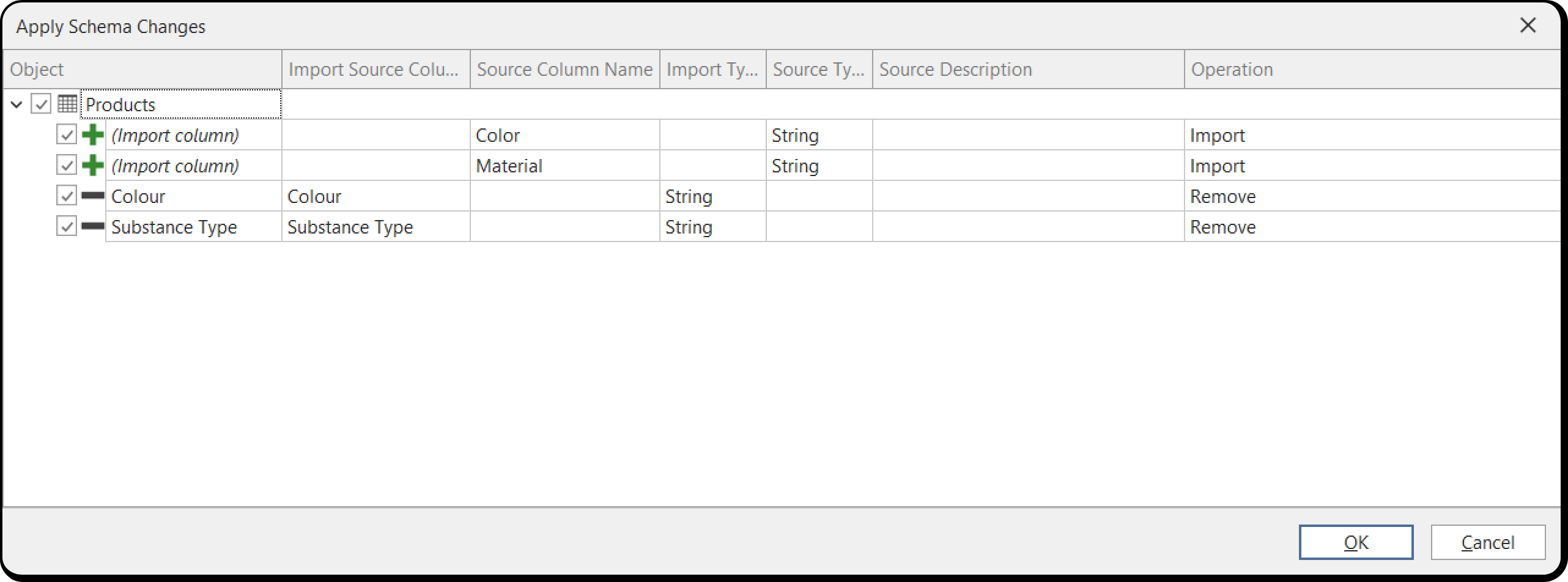
In the screenshot above, Tabular Editor detected two new source columns that aren't imported yet (Color and Material) and flagged two existing columns for removal (Colour and Substance Type), because their names no longer match a source column. Rename detection works only for simple changes. Here, Colour was renamed to Color and Substance Type to Material in the source, but the names differ enough that Tabular Editor reports each rename as a removal and an addition.
Hold Ctrl, select the Color (import) and Colour (remove) rows in the Schema Change dialog, then right-click to combine the removal and the addition into a single SourceColumn update. Existing DAX formulas that reference [Colour] keep working:
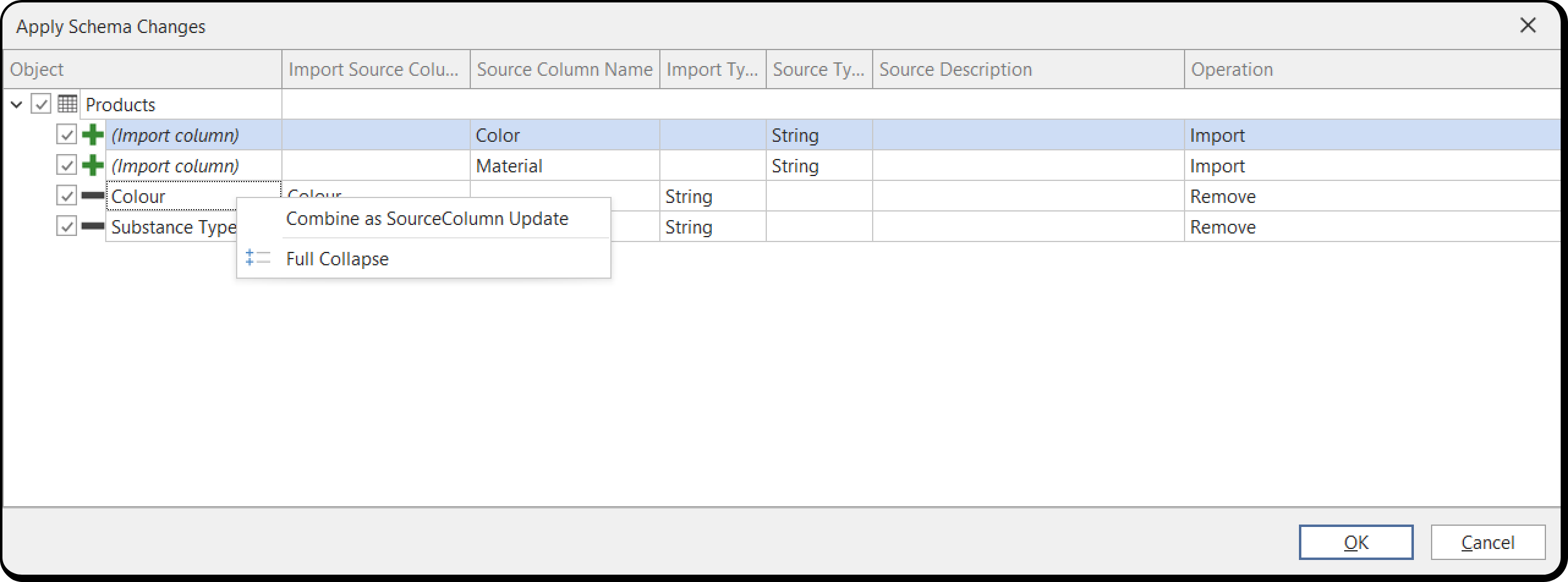
If you want to update only the SourceColumn property and keep the imported column's name, clear the Name update operation in the drop-down:
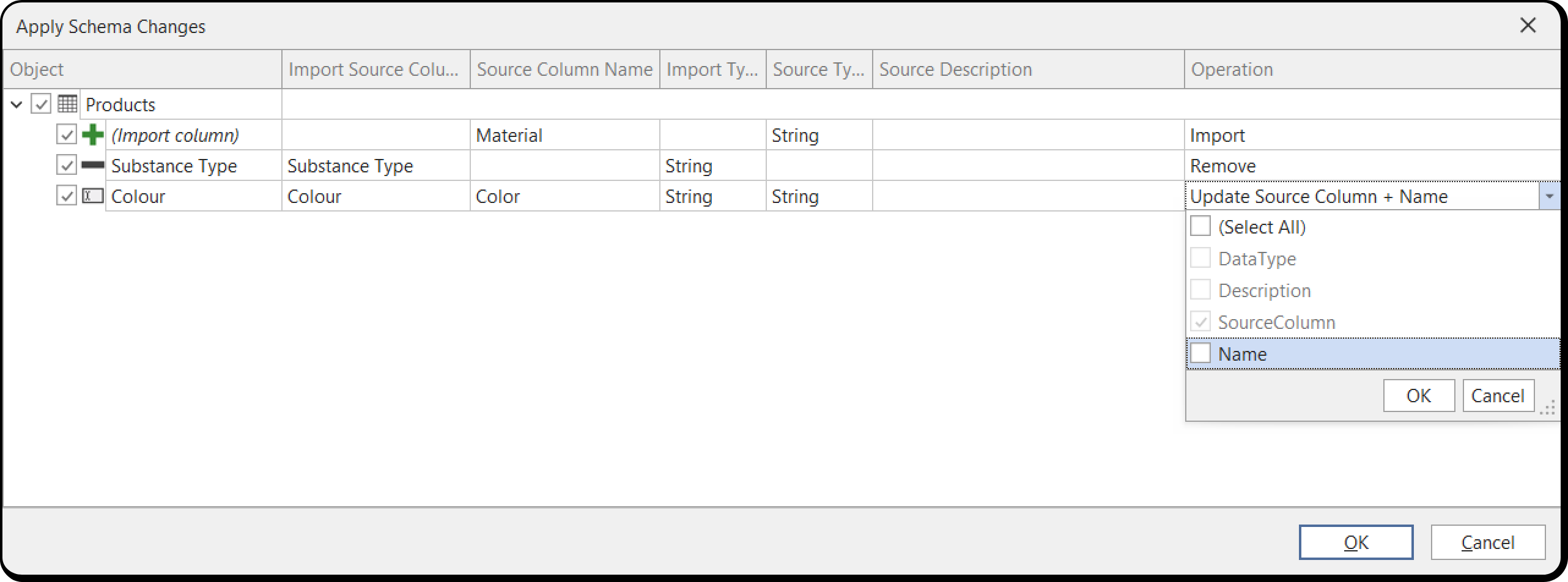
Updating table schema through Analysis Services
By default, Tabular Editor 3 connects directly to the data source to update the imported table schema, which works only for sources Tabular Editor 3 supports. Enable Use Analysis Services for change detection under Tools > Preferences > Schema Compare to update the schema of a table from an unsupported source. The option also covers partition and shared expressions whose M is too complex for the built-in schema detection, for example expressions that use M functions it doesn't support.
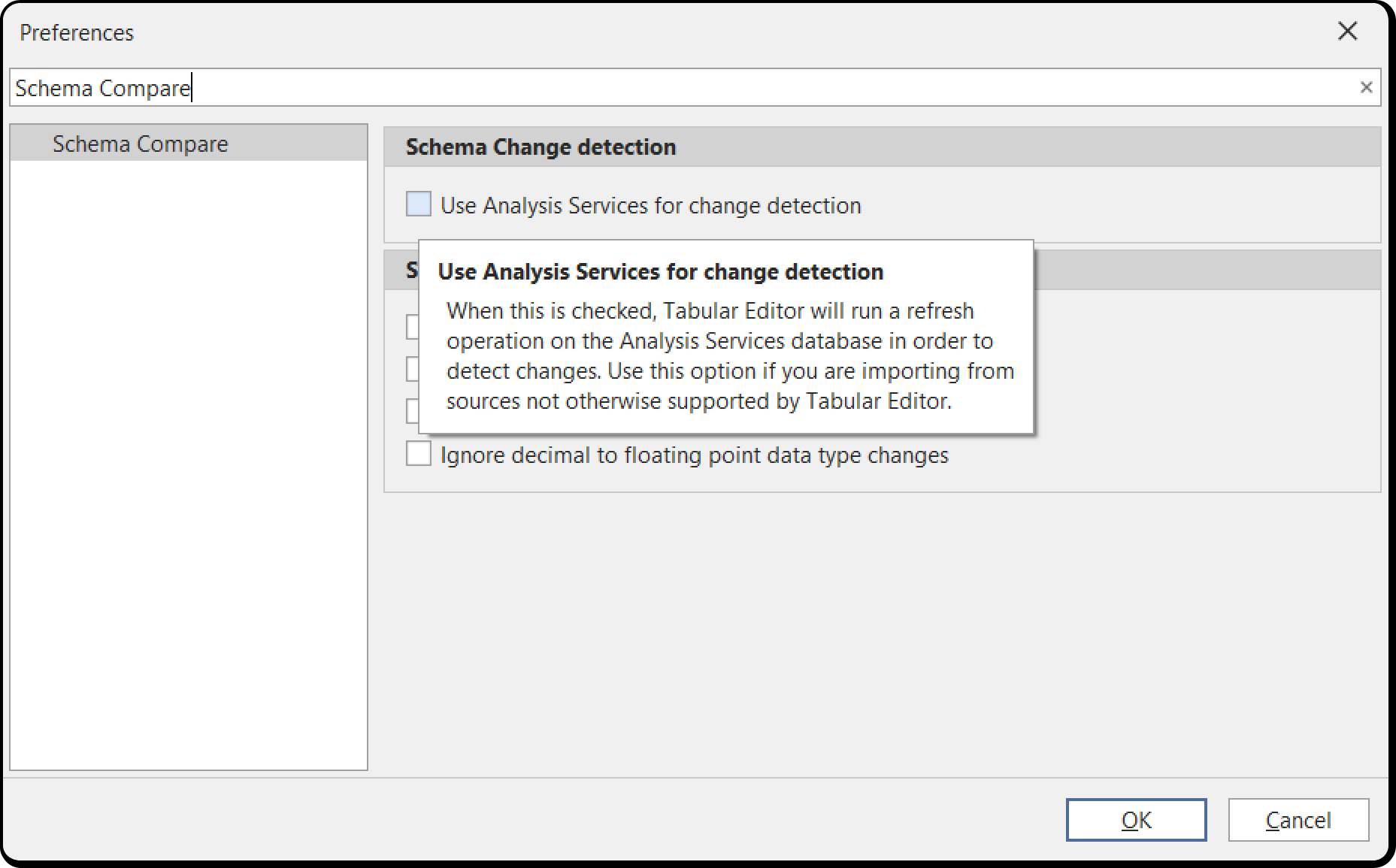
When the option is enabled and Tabular Editor 3 is connected to Analysis Services or the Power BI XMLA endpoint, you can update the schema of tables imported from any data source that Analysis Services or Power BI supports.
Tip
Workspace mode keeps Tabular Editor 3 connected to Analysis Services or the Power BI XMLA endpoint while you develop.
With the option enabled, a schema update runs these steps:
- Tabular Editor 3 starts a transaction against the connected Analysis Services instance.
- It adds a temporary table to the model, with a Power Query partition expression that returns the schema of the original expression through the
Table.SchemaM function. - Analysis Services refreshes the temporary table, connecting to the data source to retrieve the schema.
- Tabular Editor 3 queries the temporary table for the schema metadata.
- Tabular Editor 3 rolls back the transaction, which returns the Analysis Services database or Power BI semantic model to its state before step 1.
- If the schema changed, the Apply Schema Changes dialog shown above appears.
Note
If your M expressions combine data from multiple sources, such as through the M Table.NestedJoin function, you may need to change the Privacy Level from "Private" to "Organizational" on the Semantic Model in the Power BI service. Otherwise, you may see an error indicating that <Query> references other queries or steps, so it may not directly access a data source. Please rebuild this data combination.. This error may also occur even if Use Analysis Services for change detection is not enabled, as Tabular Editor 3 will automatically fall back to this detection mechanism when the M expression is too complex for Tabular Editor 3's built-in schema detection.
Importing new tables through Analysis Services
To import a table from a source the wizard doesn't support, copy an existing table from that source and modify the M expression of the copy's partition. Save your changes to the workspace database, then update the table schema as described above.